How to issue an invoice
Raise an invoice for a customer, add the products you are billing, and send it.
This guide covers raising a single invoice from scratch. It assumes you already have at least one product in your Sales list; if not, add one first.
Before you start
You will need:
- the customer you are billing (an existing relation, or one you add along the way);
- the products you are charging for, with their prices;
- the issue date and payment terms you want to apply.
Steps
- Open Sales from the left-hand navigation, then go to Invoices.
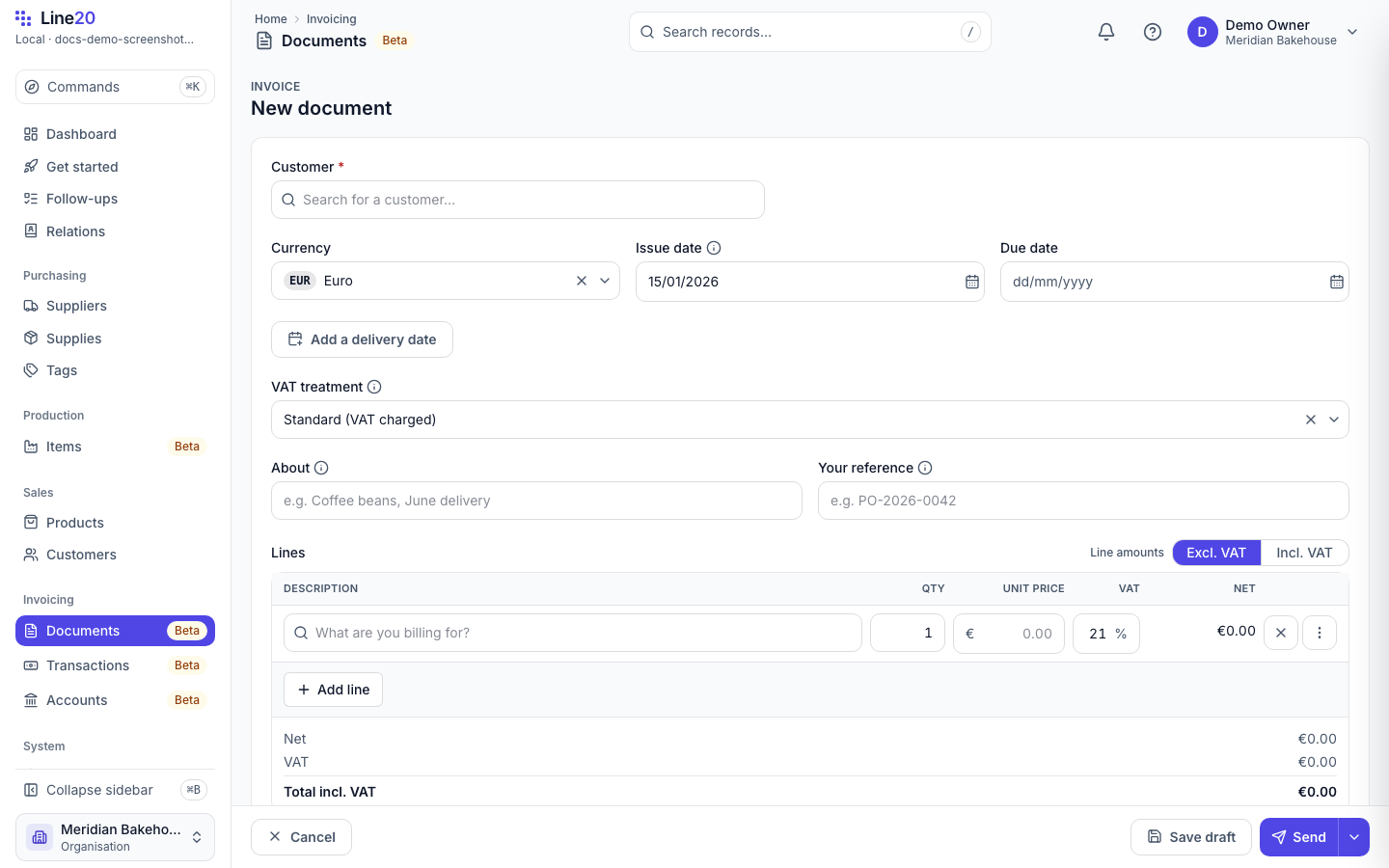
- Select New invoice.
- Choose the customer. Not in the list yet? Add one from the same field — you only need a name and an address to start.
- Add a line for each product you are billing. Pick the product, set the quantity, and Line20 fills in the price and VAT for you. You can override the price on the line if you need to.
- Check the issue date and payment terms. The due date follows from the terms you choose.
- Select Save. The invoice is now a draft you can still change.
Sending it
When the draft looks right, select Finalise. Line20 assigns the next invoice number and locks the figures. From there you can download the PDF or send it on.
Once an invoice is finalised its number and totals are fixed — you cannot quietly edit them. If something is wrong, raise a credit note against it instead.
What next
- Repeat for your other customers, or
- head back to the help centre home to explore the other guides.